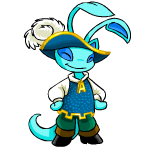
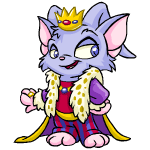
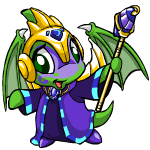
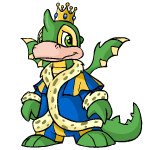
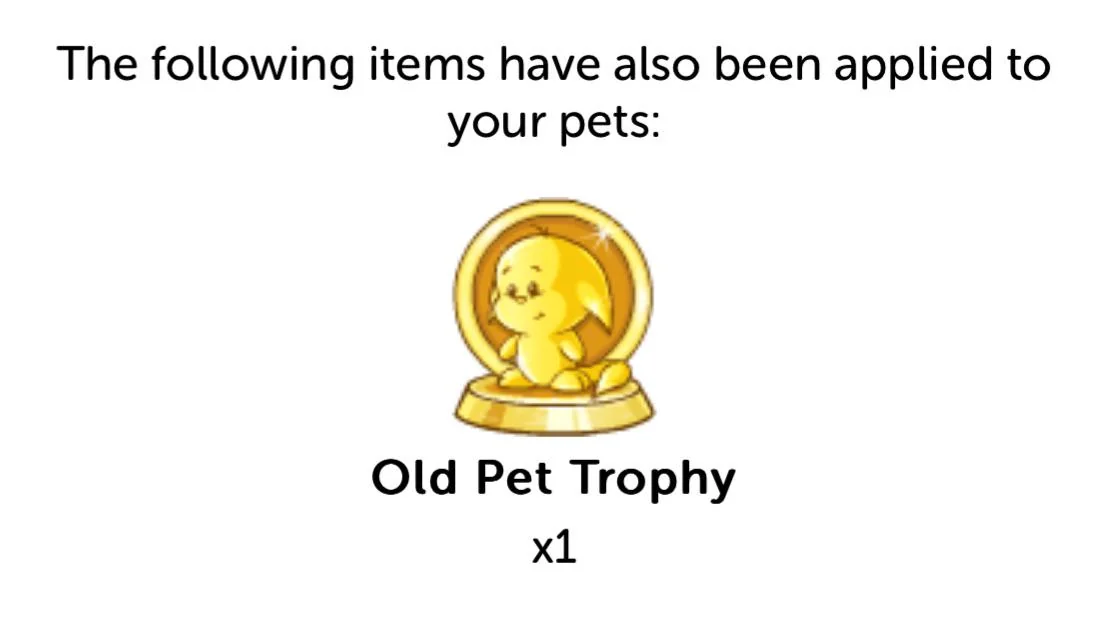
Old Pet Trophy

In the vast world of Neopia, where virtual pets roam and adventures await, a special tribute has been introduced to honor those pets that have withstood the test of time. The Old Pet Trophy, a new addition to the realm of Neopets, celebrates the legacy of pets created on or before April 26th, 2007. Regardless of their conversion status, these veteran pets are now adorned with a prestigious trophy that signifies their enduring presence in the Neopian landscape.

The Unveiling of the Neopets Old Pet Trophy

Neopets, founded in 1999, has evolved over the years with various updates and changes. To commemorate the pets that have been a part of this journey since the early days, the Old Pet Trophy was unveiled. This trophy is a mark of distinction for any pet that was brought into existence on or before April 26th, 2007, making them a part of the Neopian history books.

Eligibility and Qualification

To determine whether your pet qualifies for the Old Pet Trophy, players are encouraged to visit the main homepage of Neopets. Upon logging in, a pop-up notification will display the number of eligible pets and indicate which Nostalgic styles, if any, have been awarded. The age requirement is straightforward – any pet created before or on April 26th, 2007, is entitled to this exclusive recognition.

An Inclusive Trophy

One notable aspect of the Old Pet Trophy is its inclusivity. Unlike some trophies that may be exclusive to unconverted (UC) pets, the Old Pet Trophy is open to all pets meeting the age criteria, regardless of their conversion status. This means that both converted and unconverted pets created before the specified date are equally eligible for this prestigious award.

Clarifying the Blue Grundo Reference

The statement, “so any Neopet like a Blue Grundo would be eligible for the trophy,” might raise questions about the availability of certain painted pets. It’s essential to understand that the reference to a Blue Grundo is an example rather than a limitation. The statement implies that any pet, regardless of its paint color or species, created on or before April 26th, 2007, can receive the Old Pet Trophy. The Blue Grundo is merely used as a representative example and does not suggest that no Blue Grundos have been created since April 2007.

Preserving Neopian History

The introduction of the Old Pet Trophy not only pays homage to the veteran pets that have been a part of Neopets since its early days but also highlights the commitment of the platform to preserve its rich history. As Neopia continues to evolve, the Old Pet Trophy stands as a symbol of the enduring bonds between Neopets and their owners, showcasing the loyalty and nostalgia that make this virtual world so special.

Conclusion

The Old Pet Trophy is a cherished addition to the diverse array of achievements in Neopia. By recognizing and honoring pets created before April 26th, 2007, Neopets reaffirms its commitment to celebrating the longstanding contributions of these virtual companions. As players embark on new adventures in Neopia, the Old Pet Trophy serves as a reminder of the rich history that continues to shape the ever-expanding world of Neopets.

Last updated: 12/06/2024

Neopets UC Conversion 2024

Unconverted (UC) pets, a rare and cherished category, are remnants of Neopets’ past. They are pets that retained their old artwork after the site-wide conversion in 2007, making them unique in their appearance and style. These pets, unlike their converted counterparts, cannot be created by users, change colors or species, and have specific limitations on the types of wearable items they can adorn. As of January 2024, the landscape for UC pets has shifted, allowing users to reconnect with the nostalgia of old artwork through NC Styles available at the Styling Studio in the NC Mall.

Why was my UC pet converted?

The conversion of all pets serves a modernization purpose. To facilitate easy application of different poses and styles, all pets, including UC ones, have been converted to the current art style. If you owned an unconverted pet as of January 2024, fear not! They have been converted to the current art style, and a complementary NC style item has been bestowed upon them to retain the essence of the old artwork.

Why does some of the UC pet art look different?

The passage of time has left some of the old artwork a bit dusty. In the revival of these art pieces, certain UC pets have undergone a subtle art facelift. The aim is to align with the current brand standards while preserving the unique personality and nostalgic charm of the original artwork. Rest assured, not all old artwork will undergo changes, aiming to safeguard the cherished memories associated with these pets.

What is an NC Pet Style?

NC Pet Styles introduce a new dimension to pet customization, bringing back old or alternative versions of pet art. These styles are species-specific and offer alternative poses, designs, and color palettes, allowing users to express enhanced creativity in customizing the appearance of their Neopets.

Where do I get new NC Pet Styles?

To embark on your journey of pet transformation, explore the Styling Studio page in the NC Mall. Accessible through the top navbar icon under Shop, NC tab, or from the NC Mall homepage, this is the hub for discovering and acquiring the latest NC Pet Styles.

What is a Nostalgic Neopet NC item?

The inaugural series of NC Pet Styles focuses on resurrecting old, unconverted pet art. These come in the form of Nostalgic NC items, specifically designed to match a certain pet species and color combination. For instance, ‘Nostalgic Baby Kougra’ mirrors the art style of an ‘Unconverted Baby Kougra.’

Can I trade / sell / gift these items?

Yes, indeed! These style items operate similarly to other NC items, allowing users to trade them for other NC items or gift them through the inventory with a gift box. However, as with other NC items, they cannot be exchanged for Neopoints, Neopoint items, Neopets, or real-life currency.

What happens if I trade / abandon / change a pet wearing this item?

Much like other NC items, if a pet undergoes a trade, abandonment, or changes species, the style will automatically be removed and return to the Styling Chamber. From there, it can be re-applied to another pet or returned to your inventory.

What if users try to scam Pet Trades with these NC Pet Styles?

While the potential for scams exists, precautions have been implemented. When viewing a Neopet’s petlookup, a large yellow question mark now appears beside the pet’s name. This can be clicked on to reveal all wearable items affecting the pet’s appearance, ensuring transparency in trades. Similarly, pet transfers through the pound provide a glimpse of a Neopet’s true color and species before finalizing a trade.

Does my Neopet’s Paintbrush colour change when they are wearing these items?

Nope! These NC style items are purely cosmetic and do not affect a Neopet’s underlying color. If a pet is painted or changed into the same color as the style item they are wearing, the style will remain applied.

My UC pet was converted, but I didn’t receive an NC item or received the wrong one?

If your UC pet underwent conversion, it should now possess a ‘Nostalgic’ NC item automatically applied. Verify its presence by visiting the Styling Chamber and selecting the specific pet. If discrepancies arise, and your pet is missing a replacement item or received an incorrect one, customer support is available to investigate further.

Can my pet still wear the same items as my old UC pet with these NC Styles?

Indeed, they can! Similar to UC pets, those adorned with NC Styles are restricted to wearing foregrounds, backgrounds, thought bubbles, and some biology effects. Any desire to apply clothing and wearables to a pet’s body necessitates the removal of the NC Style through the Styling Chamber.

Some of the items my UC pet was wearing disappeared when it was converted! What do I do?

Fear not! Any wearable items that fell off during the conversion process have been returned to the closet and can be re-applied. Should any items be entirely missing, contact customer support for further investigation.

How are UC pets supposed to be traded now?

With the integration of unconverted pet art into NC Style items, these styles should only be traded for other NC items or gifted. Direct exchanges for other pets, Neopoints, Neopoint items, or real-life currency are not permissible.

Can I offer a “custom“ NC Pet Style during a Pet trade?

Pets can only be directly traded for other pets. While users are allowed to gift or trade NC Pet Style items separate from pet-to-pet trades with the permission of the other user, no responsibility is assumed for any NC items lost during such transactions.

Am I allowed to discuss seeking or trading these items on the Pet Trading Neoboards?

Absolutely! Given their close association with the style and look of pets, discussions and trades for these items on the Pet Trading boards are permitted, as well as on the NC Trading boards. However, these NC items cannot be directly exchanged for pets or anything other than NC items.

What is this trophy that appeared on some of the Petlookups?

In an homage to the pets that have witnessed Neopia’s evolution, any pet created on or before April 26th, 2007, has been bestowed with a new trophy – the Old Pet Trophy.

My pet is old or unconverted! Why didn’t they receive an Old Pet Trophy?

For pets to be eligible for the Old Pet Trophy, they must have been created on or before April 26th, 2007. If your pet meets these age requirements but did not receive a trophy, customer support is ready to delve into the matter for further investigation.

Last updated: 11/11/2024

Styling Chamber Neopets

The Styling Chamber is a haven for customization enthusiasts seeking to adorn their pets in unique Nostalgic Styles. Located conveniently in the shop dropdown menu in the navigation bar or under the ‘My Pets’ dropdown menu in the side panel, this customisation app is your gateway to transforming your pets into distinctive works of art.

Styling Chamber Neopets

Adding Nostalgic Styles to the Styling Chamber

Acquiring Nostalgic Styles is just the beginning of the creative journey. Once purchased, these styles automatically find their place in the Styling Chamber. Witness the magical transformation as the chosen style seamlessly appears on your pet. Additionally, you can manually add styles to the Styling Chamber by navigating to your inventory, selecting the desired item, and opting to send it to the Styling Chamber. To peruse the Nostalgic Styles at your disposal, utilize the ‘Show All’ filter option or select a specific pet to explore available styles under the Poses module.

Missing Wearables Dilemma

The joy of acquiring a new style may come with a price – some wearables may vanish. Fear not, as this is a natural consequence of applying a new style from the Styling Studio. Incompatibility leads to the automatic removal of non-compatible items, which find their way back to your closet for future use.

Removing Styles with Ease at the Neopets Styling Chamber

Change is constant, and so is your pet’s style. If you wish to part ways with a current style, locate the item marked with a ‘Wearing’ tag, tap on it, and effortlessly remove the style by clicking the ‘Remove Style’ button.

Applying Nostalgic Styles to Your Pet

The process of applying Nostalgic Styles is an art in itself. Whether you prefer a drag-and-drop method or a more traditional approach, the Styling Chamber accommodates both. Drag your selected Nostalgic Style onto the pet preview for an intuitive experience. Alternatively, tap on a style, click the Apply button, and save changes to witness your pet’s aesthetic evolution.

Hunting for Styles: A Visit to the Styling Studio

To expand your collection, a rendezvous with Umbra at the Styling Studio is a must. Umbra periodically introduces new styles, ensuring that your pets stay ahead of the fashion curve. Make it a habit to visit and discover the latest trends in pet aesthetics.

Styles on the Move: Transfers and Abandonments

Concerned about your styles when transferring or abandoning a pet? Worry not. Styles stay safely tucked in your Styling Chamber, patiently waiting for future pets to grace them with their presence.

One Style, One Pet

Embrace individuality – each Nostalgic Style is tailored for a specific pet and cannot be shared among multiple pets. If you desire a unified look for your furry companions, acquire multiples of the Nostalgic Style at the Styling Studio.

Gifting the Gift of Nostalgic Style

Spread the joy of customization by gifting an Nostalgic Style. Head to the Styling Chamber, tap on the desired Nostalgic Style, and select ‘Move to Inventory.’ The item transforms into a regular NC item, ready to be shared with fellow Neopians. The Styling Chamber not only elevates your pets’ aesthetics but also provides a platform for sharing the creative wealth among the vibrant community of Neopia.

Last updated: 12/07/2024

How to Continue Playing Neopets Flash Games in 2025: A Step-by-Step Guide

The end of Flash support in 2021 marked a significant shift in the online gaming landscape, leaving fans of Neopets Flash games searching for alternative ways to continue their nostalgic gaming experience. If you’re one of those Neopets enthusiasts longing to relive the magic of these classic games, fear not – there’s a workaround to keep the games running in 2025. This guide will walk you through the steps to set up an environment where you can still enjoy Neopets Flash games.

Playing Neopets Flash Games in 2025

METHOD 1 – Older Browser

(Mac Users)
Flash Download: https://mac.filehorse.com/download-flash-player/11182/
Shockwave Download: https://www.macupdate.com/app/mac/513/adobe-shockwave-player
Firefox Download: https://ftp.mozilla.org/pub/firefox/releases/52.1.0esr/mac/

Step 1: Choose the Right Browser and Flash Version

  • 1.1 Download and install an older version of your preferred browser or a different one that still supports Flash.
  • 1.2 Turn off auto-updates for the selected browser.
  • 1.3 Download and install a Flash version prior to 32.0.0.3xx, and disable its auto-updates.

Step 2: Windows Users – Additional Steps

  • 2.1 For Windows users, be aware that Microsoft has disabled Flash through an optional update (KB4577586).
  • 2.2 If you decide to install the specified update but still want to run Flash content, consider using a different operating system or an outdated version of Windows in a virtual environment.

Step 3: Installation Tips

  • PROTIP: Disable your internet connection before running installers to prevent automatic updates. Select “Never check for updates” at the end of the installation process for both browsers and Flash versions.

Step 4: Known Issues and Solutions

  • 4.1 For Opera users, be cautious of the auto updater being added to the Task Scheduler in Windows 10. Manually remove the entry from Task Scheduler Library.
  • 4.2 If you encounter issues, check for any scheduled updates that might have downloaded newer versions of Opera. Remove them but keep the current version and the “Assets” folder.

Step 5: Isolating Firefox for Neopets

  • For an isolated portable Firefox installation on Windows, follow these steps:
  • 5.1 Set up a dedicated Firefox installation for Neopets only (using FirefoxESRPortable 64-bit).
  • 5.2 Customize Firefox settings, disable automatic updates, and install the uBlock Origin add-on to block non-Neopets sites.
  • 5.3 Obtain the last Flash Player without the time bomb (v32.0.0.371) and install it offline.
  • 5.4 Copy necessary Flash files to the FirefoxESRPortable directory.
  • 5.5 Turn on the internet connection and relaunch FirefoxPortable.

Step 6: Safety Notice

  • 6.1 Only use the FirefoxESRPortable instance for Neopets and avoid unblocking any domains that uBlock Origin is blocking.
  • 6.2 Flash is no longer updated and may expose you to security vulnerabilities. Use this guide at your own risk, accepting all responsibilities for potential risks.

Method 2 – Pale Moon (Windows Users)

  1. Download Pale Moon Browser (64-bit):
    • Visit Pale Moon Download Page
    • Download the 64-bit version (Note: Despite directions suggesting the 32-bit version, Neopets may work better with the 64-bit version).
  2. Important: Disable Internet Connection Before Installation:
    • Crucial Step: Disable your internet connection before proceeding.
  3. Run Pale Moon Downloader:
    • Run the downloaded Pale Moon installer.
  4. Select “Never Check for Updates”:
    • During the installation process, ensure to select “Never check for updates” within the installer. This step is crucial.
  5. Complete Installation:
    • Allow the installation process to complete.
  6. Turn On Internet Connection:
    • Once the installation is finished, you may turn back on your internet connection.
  7. Flash Player Integration:
    • The Pale Moon Browser (Version 27 or Older) should have Flash Player automatically embedded within it.
  8. Optional: Uninstall Old Flash Versions:
    • If you have old versions of Flash on your computer, it’s recommended to uninstall them.
  9. Download and Install the Last Version of Flash (32.0.0.371):
    • Download the last version of Flash (32.0.0.371) without the disabling timer.
    • During the installation, select “Never check for updates.”
  10. Restart Pale Moon:
    • After installing Flash, restart Pale Moon to ensure the changes take effect.
  11. Enjoy Neopets Flash Games:
    • You should now be able to enjoy Neopets Flash games with Pale Moon Browser, experiencing nostalgic gameplay with Flash Player integrated.
  12. Note: Buggy Behavior:
    • Be aware that the browser may exhibit slight bugginess at times, but it should work smoothly around 90% of the time.

Method 3 – Ruffle

  1. Install Tampermonkey:
    • Download and install Tampermonkey on your browser (e.g., Chrome, Firefox).
    • Link: Tampermonkey
  2. Install Ruffle Browser Extension:
    • Install Ruffle, a browser extension.
    • For Firefox and Chrome/Edge, use the extension store.
    • For Safari, download the folder from Ruffle Downloads and manually add it to your browser as an extension.
  3. Open Tampermonkey Extension:
    • Open the Tampermonkey extension on your browser.
    • Click on “Create a new script.”
  4. Copy and Paste Code:
    • Copy the code from Neopets Ruffle Fix.
    • Paste the code into the Tampermonkey script editor.
  5. Save the Script:
    • Save the script within Tampermonkey.
  6. Test the Fix:
    • Verify if the fix works by testing it on a game, for example, Extreme Herder.
    • Test link: Extreme Herder
  7. Confirmation:
    • If done correctly, the fix should work for some games, providing a solution to the Flash-related issues.

Method 4 – Use this to make Shockwave / 3Dvia Work

Fiddler Installation:

  1. Install Fiddler Classic.
  2. Find the Fiddler script folder (usually Documents\Fiddler2\Scripts) and save CustomRules.js to that directory. Alternatively, copy/paste the file contents into Fiddler->Rules->Customize rules, and hit Ctrl+S to save.
  3. In Fiddler, go to Tools -> Options -> HTTPS and enable:
    • Capture HTTPS CONNECTs
    • Decrypt HTTPS Traffic
    • Ignore Server Certificate Errors.
  4. Click Actions->Export Root Certificate to Desktop.
  5. Click Actions->Trust Root Certificate to make other browsers trust the proxy.

Pale Moon Certificate Installation:

  1. Open Pale Moon, go to Preferences -> Advanced -> Certificates.
  2. Click “View Certificates,” then “Import,” and locate the exported certificate on your desktop named “FiddlerRoot.cer.”

Proxy Exclusions:

  1. In Fiddler, go to Tools->Options->Connections.
  2. Add the following into the “Bypass URLs that begin with…” field:plaintextCopy code<-loopback>;discord.com; discordapp.com; netflix.com; *.discord.com; *.discordapp.com; *.netflix.com; *.discordapp.net; discordapp.net; *.google.com; google.com; *.gmail.com; gmail.com; *.youtube.com; *.gstatic.com; *.cloudflare.com; *.googleapis.com; *.jquery.com; *.googlevideo.com; support.neopets.com

Neopets Folder Setup:

  1. Download the neopets folder in this project.
  2. Find the Fiddler installation path (usually C:\Users\YOUR_USERNAME\AppData\Local\Programs\Fiddler or C:\Program Files\Fiddler).
  3. Create a folder named “neopets” and extract the downloaded neopets.zip files into it. The extracted files should end up looking like C:\Users\YOUR_USERNAME\AppData\Local\Programs\Fiddler\neopets\games…

Final Steps:

  1. Close Fiddler.
  2. Start Fiddler whenever you want to play Neopets games.

Notes:

  • The certificate can be removed later via [Windows Certificate Manager](certmgr.msc->Trusted Root Certification Authorities->Certificates). The name of the certificate is DO_NOT_TRUST.
  • Fiddler may need “Capture Traffic” enabled for consistent performance.
  • Clear out Fiddler history/restart occasionally to prevent excessive memory usage.
  • For troubleshooting, refer to the guide and explore additional notes.

Conclusion

With careful setup and adherence to safety precautions, Neopets enthusiasts can still enjoy the classic Flash games in 2024. Remember that using outdated software poses security risks, so proceed with caution and only follow this guide if you are prepared to accept the associated risks and responsibilities. The games are still here, waiting for you to embark on new adventures in the world of Neopia!

Last updated: 05/14/2025

Neopets Autobuyer

The Neopets Autobuyer, is a bot, or tool, that has been around for ages. People have used this autobuyer to auto buy items from the main shop! Imagine turning this neopets autobuyer on, than waking up the next morning to dozens of morphing potions in your inventory! Well that’s what an autobuyer does, and it rakes it tons of profit! You will already need Greasemonkey installed (read here), and when you do, you can install the script below:


Autobuyer

How to Install Autobuyer

  1. Download NeoBuyer+
    • Access the download link provided above.
    • Download the latest version of NeoBuyer+.
    • Save the downloaded files to any location on your computer.
  2. Open Chronium Based Browser
    • Launch your Chronium-based browser.
  3. Access Chrome Menu
    • Click on the three dots located in the upper-right corner of the screen to open the Chrome menu.
  4. Navigate to Extensions
    • From the Chrome menu, select “More tools.”
    • Click on “Extensions” in the drop-down menu.
  5. Enable Developer Mode
    • Ensure that the “Developer mode” option is turned on.
    • Toggle the switch in the upper-right corner of the screen to activate Developer mode.
    • Refresh the tab.
  6. Extract Downloaded Files
    • Extract the downloaded files from the compressed .ZIP / .RAR package.
  7. Load Unpacked Extension
    • Within the “Extensions” menu, click the “Load unpacked” button in the upper-left corner of the screen.
  8. Select Extension Folder
    • In the file explorer window, navigate to the location where you saved the extension files.
    • Choose the folder containing the extracted files.
  9. Install the Extension
    • Click the “Select Folder” button to install the extension.
  10. Verify Installation
    • Confirm that the extension now appears in the list of installed extensions in your Chronium-based browser.
  11. Configure NeoBuyer+
    • Navigate to the options page of NeoBuyer+.
    • Acknowledge any warnings triggered during the installation.
    • Configure the desired parameters for the extension.

Autobuyer Usage Tips

  1. Explore FAQs:
    • Access NeoBuyer+’s FAQs in Tools > Miscellaneous for additional information about the extension.
  2. Account Safety:
    • No warnings or account freezing reported during usage.
    • Exercise caution and follow these tips to avoid potential issues with Neopets.
  3. Avoid Greediness:
    • Restrict restocking sessions to under 8 hours to avoid drawing attention to your account.
    • Practice moderation and common sense to prevent overdoing it.
  4. Adapt Strategy:
    • If unable to purchase an expensive item, opt for less profitable items to maintain a low profile.
    • Focus on the quantity of items stocked rather than their individual value.
    • Choose shops with high profitability or low competition.
  5. Configuration Precautions:
    • Carefully review and set all options before activating the AutoBuyer (ABer).
    • Be cautious when configuring options, especially those set in milliseconds.
  6. Item Search and Custom Lists:
    • Utilize JellyNeo’s item databases to search for specific items in desired shops.
    • Create custom item sniping lists by experimenting with JellyNeo’s database filters.
    • Future tools will allow data extraction for accurate parsing in the extension.

Autobuyer Features

This specific script will do 5 things all in one script to help you restock in the magic shop. It will:
– autorefresh at the rate you set with a special bellcurve feature (explained below)
– autoalert you via a small javascript pop-up and/or with a sound when an item in your rs list is in stock
– autogo to the haggle page when the item is in stock so you don’t have to click it
– and finally enter a smart autohaggle (3333, 3535, 3355, etc.)

This means that effectively all you have to do to buy the item wait until it restocks then click on the pet on the verification image!

Autobuyer Features Explained
neopets autobuyer

Bellcurve Autorefreshing

The bellcurve refreshing rate will refresh more often in the middle of your intervals than on the minimum and maximum values of your interval. This is done to create the appearance of a more realistic refreshing pattern. This is probably easier explained through an example.

An example of this out of 1000 refreshes with a minimum interval of 0 seconds and a maximum interval of 7 seconds:

0-1 Seconds: 50 times
1-2 Seconds: 100 times
2-3 Seconds: 200 times
3-4 Seconds: 300 times
4-5 Seconds: 200 times
5-6 Seconds: 100 times
6-7 Seconds: 50 times

Normally, with each interval would have roughly the same number of refreshes but as you can see, the bellcurve avoids exactly that. This was done to create the appearance of a more reaslitic refreshing pattern.

Alert System

There are two options available to alert you when it restocks: a small pop-up window and/or a sound.

The purpose of the javascript pop-up is to focus your screen on the restocking tab of your browser you have open if you’re doing something else on your browswer. I personally watch youtube a lot so I can watch youtube vids on one tab but when it restocks, I don’t even need to click on the tab with the shop because this pop-up will automatically do it for me! Note that if you have your browser minimized when it restocks, it will NOT open up your browser (this is what the sound is for).

The sound is just another way to tell you that it has rsed in case your eyes are off the screen or if you’re doing something else not on your browser. For an example, if you like to watch a lot of movies on your computer, then you can watch fullscreen but when it restocks you will hear a sound so you will know when to unminimize your browser and buy.

If you have two monitors, then you can even disable the pop-up and leave just the sound. Have one monitor with your browser open at the shop and the other monitor watching a show or doing something else. Then when it restocks and you hear a sound, you can just move your mouse over and buy the item.

Auto-go to haggle page

Whenever an item in your list is in stock, the script will automatically go to the haggle page for you! Pretty simple.

Autohaggle

The script will also smart autohaggle for you. It will enter the haggle in well-known restocking patterns like 2121, 2222, 2211, 2221 etc. so it will look like you’re an expert restocker! Although on rare occasions, the number it enters will be too low and the shopkeeper won’t accept it. This has only happened to me a couple of times over quite a while though.

Setup and Editing

To get started, download the two attached scripts. With Greasemonkey installed, open the script in Firefox. You should be prompted to install it. If the script opens in the browser instead of asking for installation, simply refresh the page, and it should prompt you to install. Once installed, navigate to the Magic Shop, and the script will begin working automatically.

Changing Time Intervals

To adjust the time intervals, open the script in Notepad or WordPad. At the top of the script, you’ll see the following lines:

var randNumMin = 3.54; // Minimum time value for randNum
var randNumMax = 6.36; // Maximum time value for randNum

You can modify 3.54 and 6.36 to set your preferred minimum and maximum refresh times.

  • 3.54 is the minimum time, and 6.36 is the maximum time for refreshing.

Note: Due to the bell curve feature, the actual refresh time may not match exactly the values you set. For example, even if you enter 3.54 and 6.36, the refresh could take between 5 and 8 seconds. Test different settings to see what works best for you.

Changing, Adding, or Removing Items

To modify an item entry, refer to this example:

else if (document.body.innerHTML.indexOf('Starry Grarrl Morphing Potion') != -1) {
var item = document.evaluate('//b[. = "Starry Grarrl Morphing Potion"]',document, null, XPathResult.UNORDERED_NODE_SNAPSHOT_TYPE, null);
alarm();
autograb();
miscellaneous();
return;
}

To change the item, simply replace both instances of “Starry Grarrl Morphing Potion” with the name of the item you want.

To add a new item, copy an existing entry and replace the item name with the new one you wish to add.

To remove an item, delete the entire entry, including the semicolons.

Important: Do not remove or modify the entry that says <DO NOT REMOVE. Removing it will prevent the script from functioning properly. The < is intentional and not a typo.

Customizing Your Script

If you’d like to customize the script:

  • Remove the pop-up: Use the Find and Replace feature (Ctrl + H in Notepad) to replace all instances of miscellaneous(); with nothing (leave it blank). This will remove the pop-up.
  • Remove the sound: Similarly, replace all instances of alarm(); with nothing to remove the sound notifications.
  • Disable automatic item grabbing: To stop the script from automatically clicking on items, replace all instances of autograb(); with nothing.

This allows you to tailor the script to your preferences.

Autobuyer Shops

Magic
Huge profits but only if you have the patience to sell the potions. Make sure you have a couple of million beforehand so you don’t spend all your money on potions that you haven’t sold yet! But magic is very competitive so don’t expect to get every potion you see.

Toy
In this list, I’ve included only unbuyable items and I think the script is probably missing some but it’s a decent list. Pinatas are about 100k each and can be seen by accounts 1 month old. Some of the items are worth millions while some are not.

Pharmacy
Great for accounts about 16+ days old because they can see all the items. Very good profit for young accounts. Fairly competitive though items often restock in packs of 20 so you can usually get at least 2 of them. Cactopus cream and Sporkle Syrup can also sell for 100k and 200k respectively.

Ice Crystal
This shop is only for those with a lot of patience. Very rarely will a decent profitable item ever restock so you can expect to go weeks without even buying a single item from there. There are a few items with small profit there (less than 10k) but I’ve excluded them. That way when you hear the alarm, you KNOW something quite valuable has rsed. The big item you’re going after here is the Freezing Potion worth about 7.5m. There are also a few other unbuyables in the list.
https://neopets-cheats.com/wp-content/uploads/2024/01/nc_mall_250x200.png

Autobuyer Miscellaneous Information

If there is more than 1 item in stock that is in your list, the script will take priority in order of the items listed from top to bottom. So that means you should put the most profitable items at the top and the least ones on the bottom.
If you do not know what greasemonkey is, I suggest you read another guide on that and there are plenty around, even some on these forums.

Due to the large number of profitable items in magic and thus a very long script, the script *may* freeze your browser for a second whenever it refreshs if your computer is not very fast. For faster computers though, you shouldn’t notice anything.

As with any other hack, trick, glitch, exploit, bug, etc., use this in moderation. Even if you’re on the computer all day, do not leave this on for hours at a time. Take breaks every hour or two and of course, do not buy items too quickly once you get to the haggle page. You may want to wait a second or two before clicking the pet verification picture so it won’t look like you have a buy time of 0.6 seconds because you will get frozen if you do that.

Now with all this setup, you can rs as long as you’re on your computer but without even playing Neopets or even having your eyes on the monitor. Good luck!

Last updated: 12/15/2025